Steps to reproduce
- Download Dynalist for Linux(64bit)
- Right-click downloaded file and extract contents
- Click on Dynalist icon
Expected result
Dynalist should open, allowing the user to log on.
Actual result
Nothing. App doesn’t open and there are no error messages
2 Likes
même soucis en juillet 2019
Try this:
1, get in the directory where you extracted the tar.gz file;
2, type “./dynalist” in the terminal and run it…
PS: and now you can see the icon in your software menu too…
8 Likes
Also make sure you don’t run “./dynalist” as root, since I was getting “No protocol specified”, but ran it normally when I did it as a non-root user.
Hello!
I’m Elementary OS user (based on Ubuntu 18.04). Please, help me to install Dynalist on my laptop.
I downloaded dynalist.tar.gz archive from official page: Download - Dynalist. And I create Apps folder into my Home folder. And extract archive into my Apps folder.
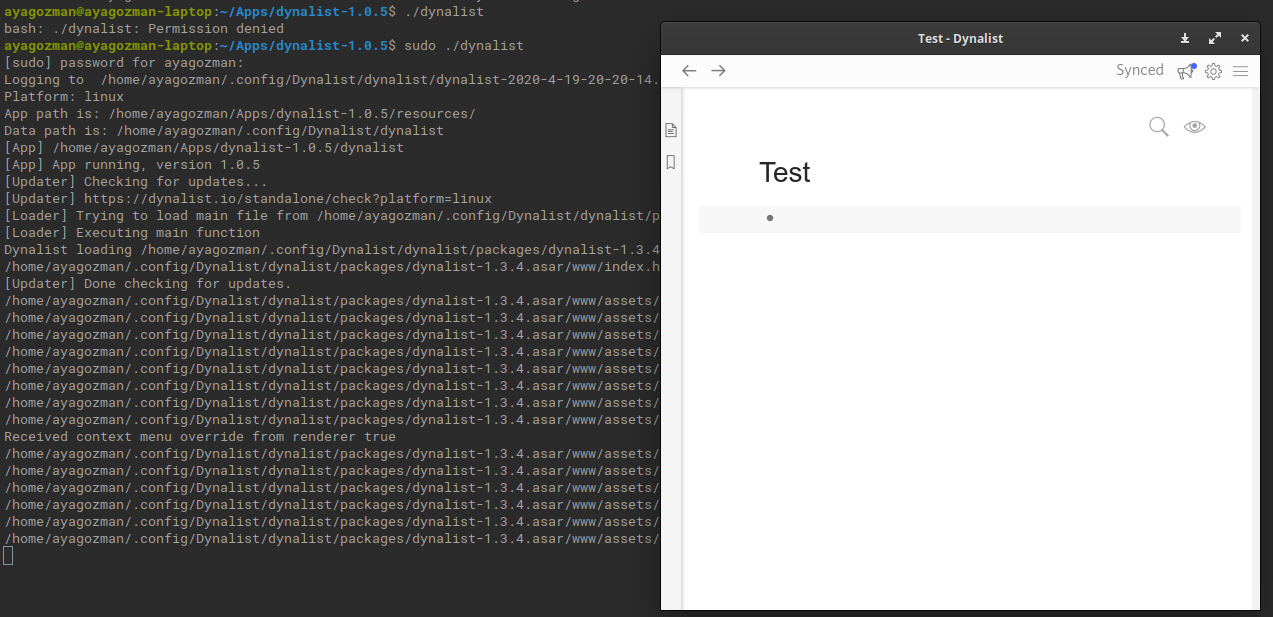
Then I go to Dynalist folder (extracted) in terminal. And write: sudo ./dynalist. It launch my application, and app is correctly work.
But I don’t see Dynalist app into my applications menu.
Also for launch app, it needs sudo-permissions. What should I do to add Dynalist in applications menu (with icon)? Don’t convenient to launch app each time with terminal.